Navigating Your Workato Project
Introduction
LCvista connections powered by Workato provide customers the ability to configure, define, and automate data connections in a self-serve manner. For example, customers may want to automatically create accounts in LCvista when a new employee is onboarded in their HRIS system, such as Workday, UKG, or others.
The following article will define core concepts related to managing your Workato integrations.
Getting Access
Connections powered by Workato is currently in Beta release. Please reach out to your account manager to discuss getting access.
Subscription Plan
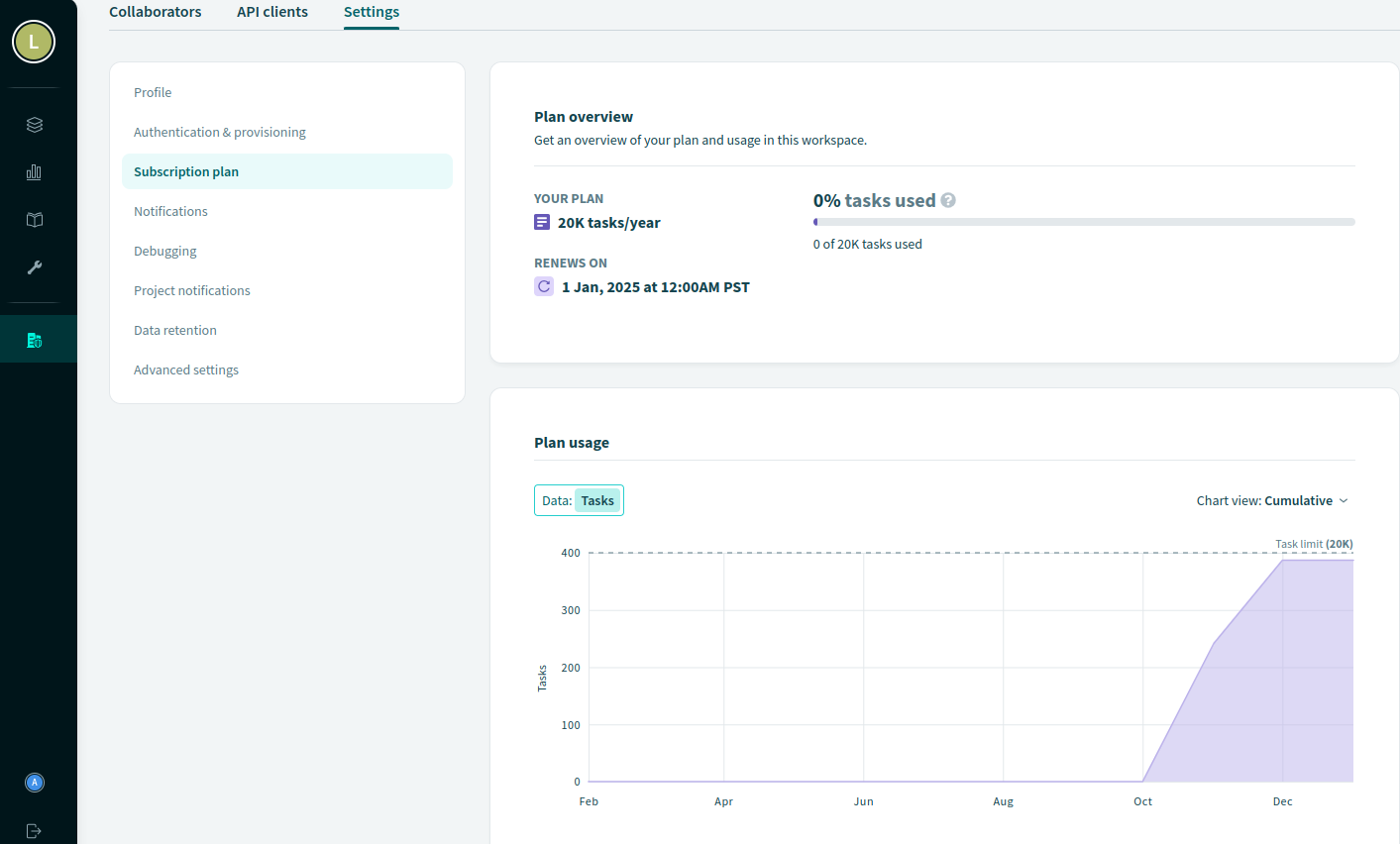
Your Workato account is monitored based on the number of tasks run. To view the number of tasks your account has consumed, go to the Workspace Admin menu option and click on Subscription Plan.
Terminology
Common terms used to manage the pre-built templates provided by LCvista. See Workato Support Docs for additional details and support documentation related to Workato.
Project
A project is a repository for your connections. A project holds the set of assets for your integrations, including recipes and connections.
Connectors
Integrations are constructed with two connectors, a source and a destination connector. Connectors are provided with a set of pre-defined actions such as get a modified record, create a record, update a record, etc. Connectors need to be authorized and authenticated in order to interact with your systems.
Recipe
A recipe is the automated workflow built to connect data between systems. Each recipe is typically comprised of a trigger and one or more actions. For example, a recipe may extract modified records from your HRIS platform and then update each corresponding record in LCvista with the changes.
Trigger
A trigger is the first step in a recipe. A trigger is associated to an event in the connector. For example, you can trigger a recipe to start when a new report file is sent to a designated SFTP directory.
Navigating Your Workato Project
From the home page in Workato, you will have access to quickly perform standard tasks such as view your recipes, authenticate connections, and view recipe job history. As your company administrator, you will have the ability to grant other team members access to your account as needed.
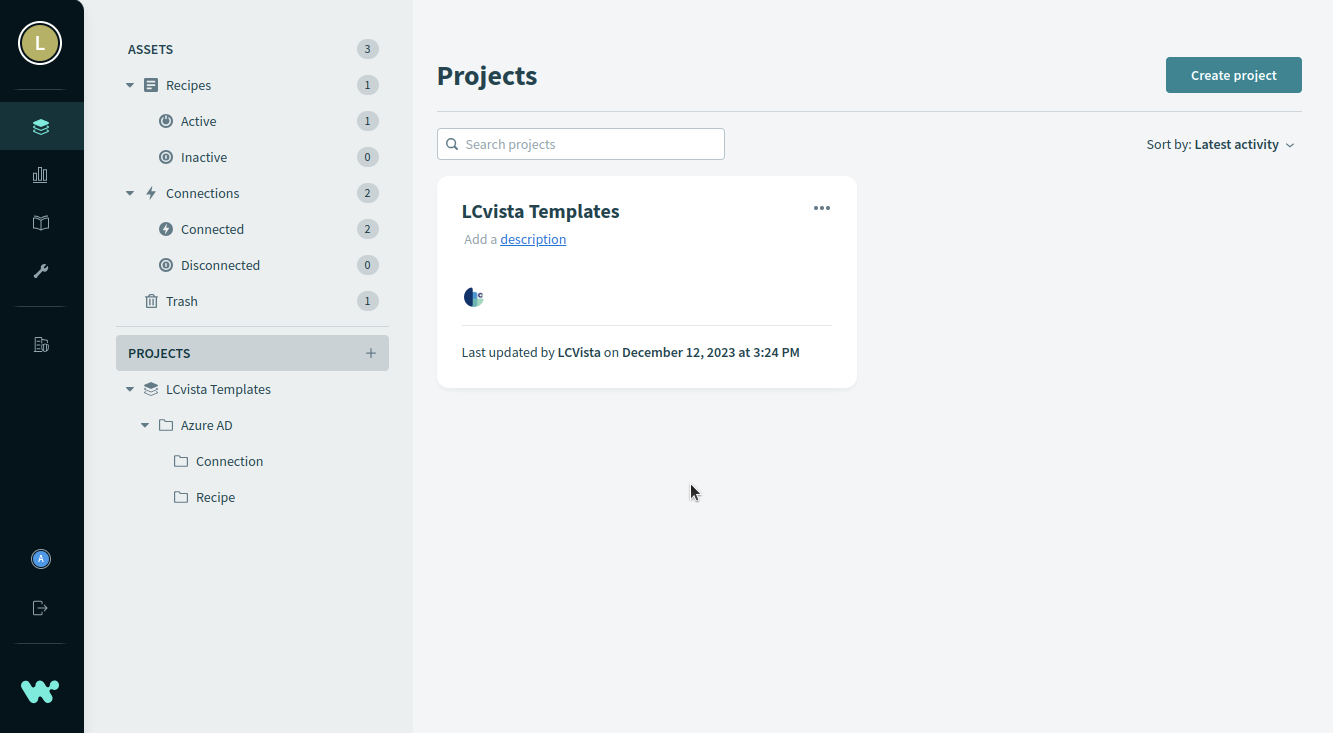
The following will highlight how to perform some key tasks from your project.
Find Your Active Recipe
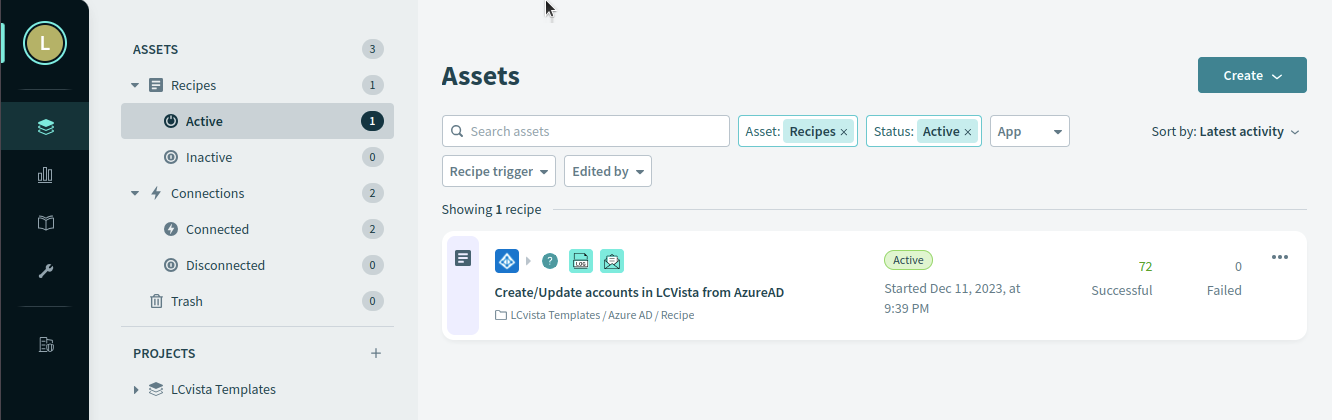
From the Assets menu, click on Active to list the recipes that are currently running on your site.
Recipe Details
From the Assets > Active menu, click on the recipe to view details, including the recipe connections, recipe job history, and recipe tasks.
Job History
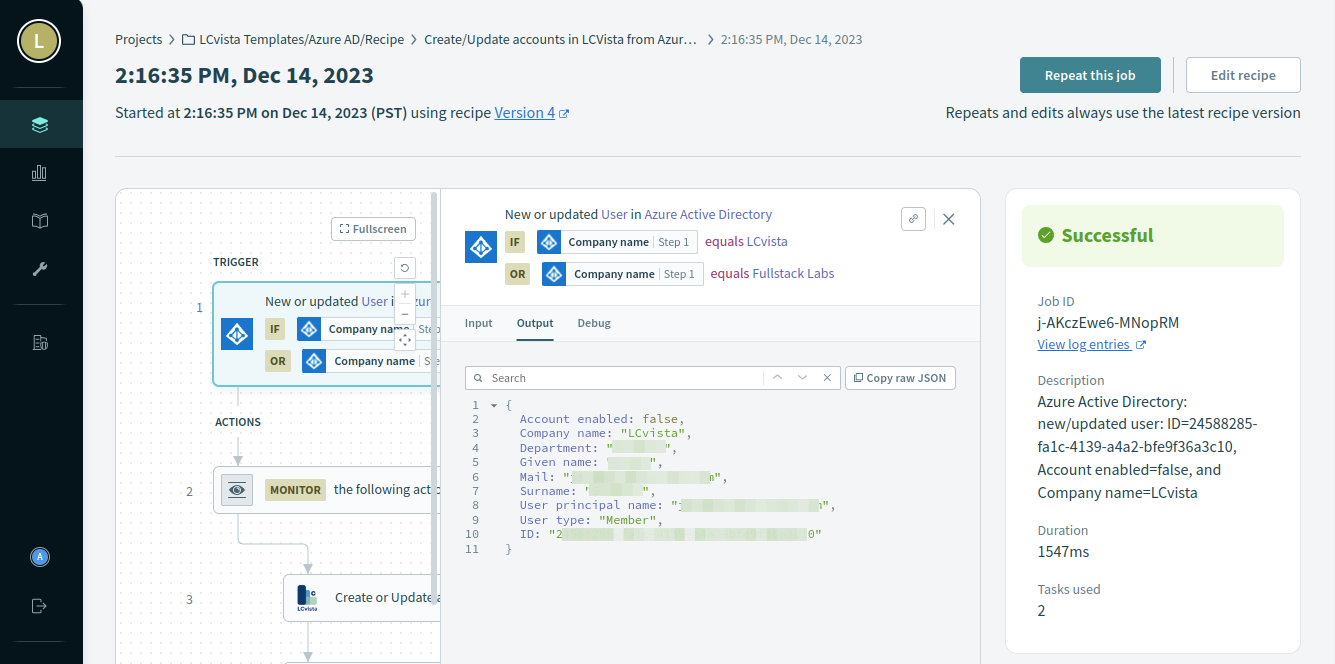
From the Recipe details page, click on the Jobs tab. Your job history table may look different, as the table can be customized to display the specific fields you would like to track.
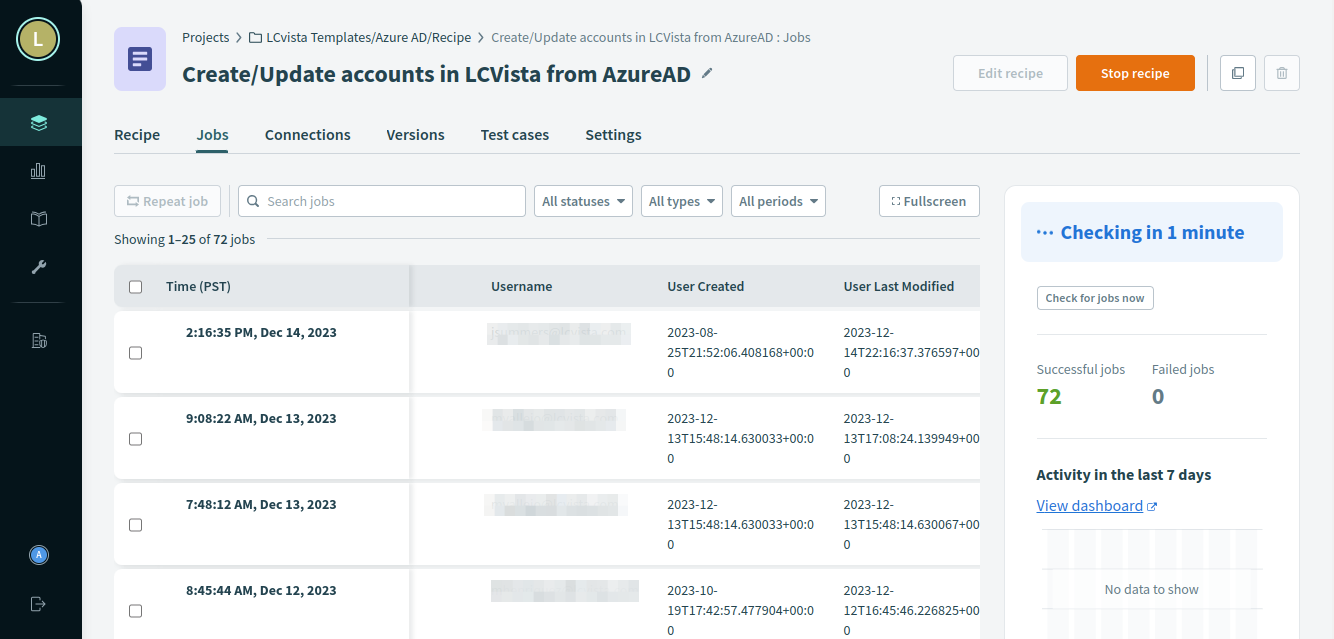
To see the details associated with a job run, click on a specific row. This will open up the Recipe, and you can click on each task to view data that was processed.
Update Connection Authentication
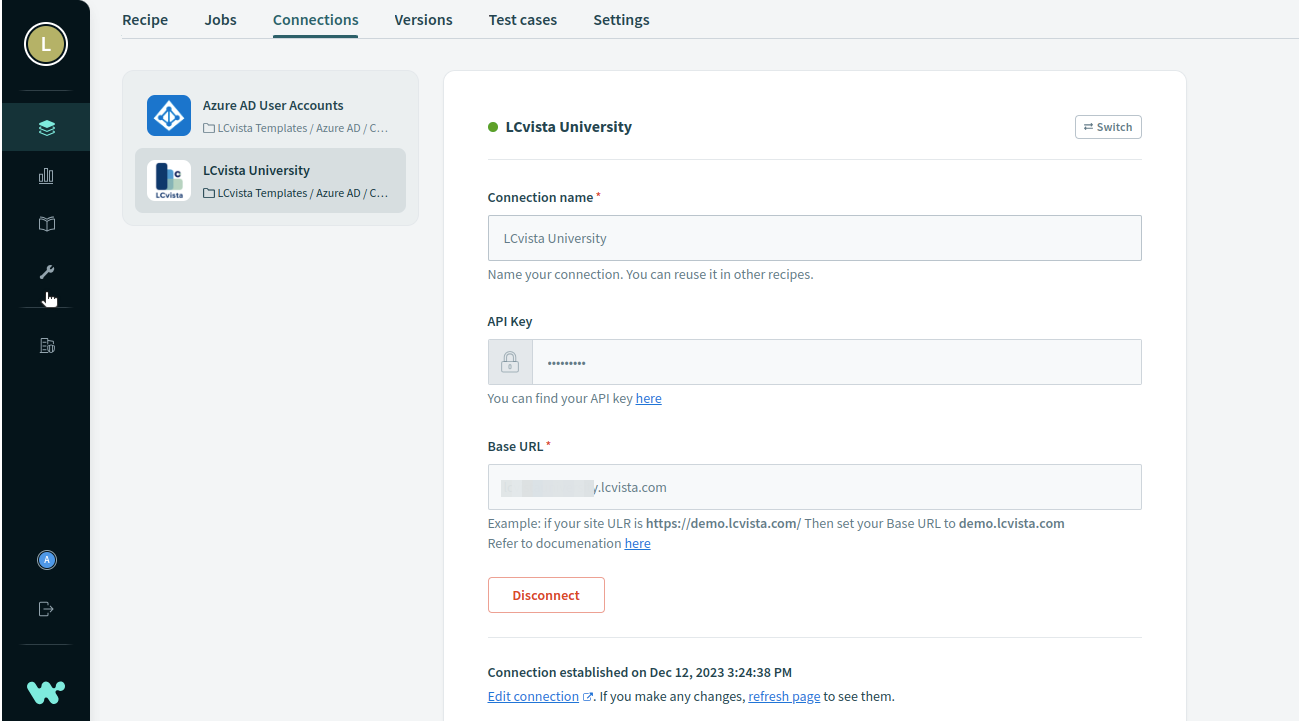
From the Recipe detail page, click on the Connections tab. If the Recipe is running, click the orange "Stop Recipe" in the upper right-hand corner, then click the Disconnect button at the bottom of the page. Now you can add the authentication credentials.
Related to