Bulk Uploads
For more information on the Bulk Uploads feature and best practices for using the workflow, refer to our article on Bulk Uploads.
Continue reading this article to learn more about adding, modifying, and replacing managers and professionals that should be managed in bulk.
Template Specifications
Once you have elected to update Managed Users using this Bulk Upload type, you will have access to download the Managed Users Template. Once the Managed Users option has been chosen, a list of available actions connected to this workflow will become visible in the table below.
Take note of the actions available as you populate the template to process these changes.
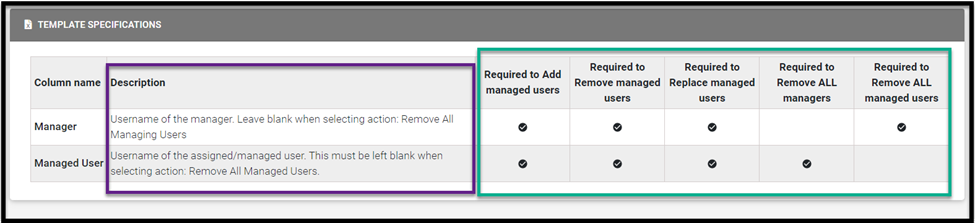
The Template Specifications table, visible on the second half of this page, is also important to review. This table confirms the types of updates that can be made, the column descriptions, and whether the columns are required for additions or updates.
Populating the Template
This Excel will be formatted based on the action you wish to apply through this bulk upload type.
Available Actions
For this specific bulk upload type, you will have access to apply any of the following actions:
- Add managed users: utilize when the desired outcome is to add to the list of users a manager has access to manage; to add all users, enter the exact phrase all users. Please note the exception for users assigned via a group: Managed users cannot be added to a manager who is already assigned all users through a group.
- Remove managed users: utilize when the desired outcome is to remove from the list of users a manager has access to manage. Please note the exception for managers who have been assigned all users: Individual managed users cannot be removed from a manager who is already assigned all users.
- Replace managed users: utilize when the desired outcome is to replace the existing list of users a manager has access to with a new list of users. Please note the exception for users assigned via a group: Managed users cannot be replaced for a manager who is already assigned all users through a group.
- Remove ALL managed users: utilize when the desired outcome is to remove the list of managed users from the designated manager. Please note the exception for users assigned via a group: This action cannot be used on a manager who is already assigned all users through a group.
- Remove ALL managers: utilize when the desired outcome is to remove the managed users from any managers they are currently assigned to.
Processing Request
After you define the desired behavior, select Validate Data and Preview.
For more information on reviewing, data, and submitting your request, please reference the Bulk Upload Request article and the section on Previewing Data.
Related to