LCvista’s core compliance tracking solution was purpose-built to support CPA firms in managing the complex continuing education requirements mandated by industry regulators and State Boards of Accountancy.
While our original focus was on CPA-specific certifications, we have seen a significant increase in demand for support of non-CPA certifications as firms broaden their professional development programs. What began as a small set of common certifications has grown to nearly 1,000 unique non-CPA certifications requested by our clients—and that number continues to climb. Many of these certifications serve smaller user populations, but remain valuable for firms managing oversight, staffing and internal development initiatives.
To ensure we can continue to support our clients effectively, we are temporarily pausing the development of new certifications. This pause will allow us to re-evaluate our approach and design a long-term certification strategy that better aligns with the evolving needs of the accounting industry and the firms we serve.
 My Certifications
In the interim, LCvista is offering clients a new My Certifications option with no coded requirements that can be added to user profiles to track non-supported certifications. This option allows the admin to populate the ‘notes’ section with certification(s) not currently supported in the compliance solution.
The My Certifications jurisdiction can be added to your LCvista site upon request by reaching out to your Account Manager or LCvista Support.
Please review the steps below for formatting best practices, this will be a crucial step in ensuring reportability, and also a seamless migration from the My Certifications jurisdiction to the future concept.
Tracking
Required: Use the full certification name, as issued on the certificate
example: Certified Securities Operations Professional
Optional: Including common acronym when relevant, in parentheses
example: Certified Securities Operations Professional (CSOP)
Optional but important: including regulating body when appropriate, separated by a comma
example: Certified Securities Operations Professional (CSOP), American Bankers Association
Optional but Important: Including current active dates separated with a colon
example: Certified Securities Operations Professional (CSOP), American Bankers Association: 1/1/2025-12/31/2025
Separate multiple certifications with a semi-colon
example: Certified Securities Operations Professional (CSOP), American Bankers Association: 1/1/2025-12/31/2025; Certified Nurse Aide (CNA), Missouri: 1/1/2023-12/31/2025
Reporting
If an individual has multiple non-supported certifications, the following is the recommendation for logging and reporting (requires Excel manipulation)
Pull a user jurisdiction or compliance details report, including notes and filter by My Certifications jurisdiction
For best results, notes should be the last column of the report
Export to Excel
Use excel function “Text to Columns” to parse out the multiple certificates
For further information on ‘Excel text to column’ see the help section below
Now each certification per use is represented in an individual Cell; this allows admins to get an accurate count of all certifications being tracked
manipulate this data into individual rows if you’re looking to compare users to one another
Be sure to use the CTRL + F function to ‘find’ any important dates, such as upcoming expirations
Excel Text to Column
-
Notes column of report selected
-
In Excel workbook, view “Data” Tab
-
Find “Text to Columns”
-
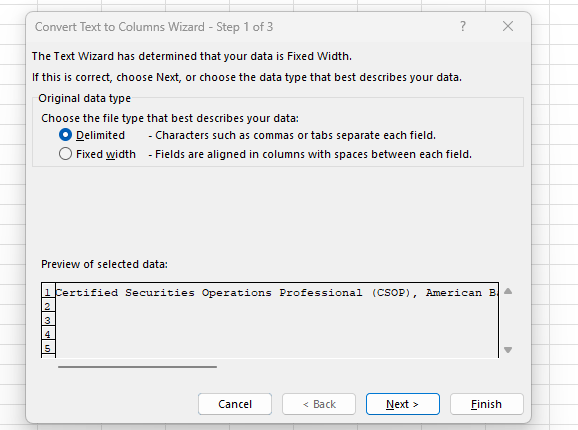
A 3 Step wizard will open
-
Step 1: Choose “Delimited” & click Next
-
-
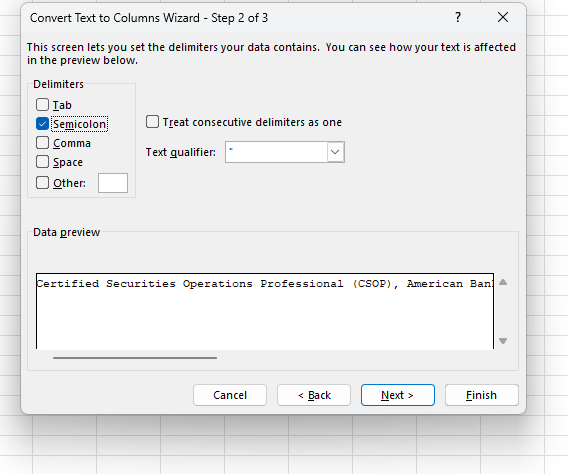
Step 2: Select Semicolon as Delimiter & click Next
-
-
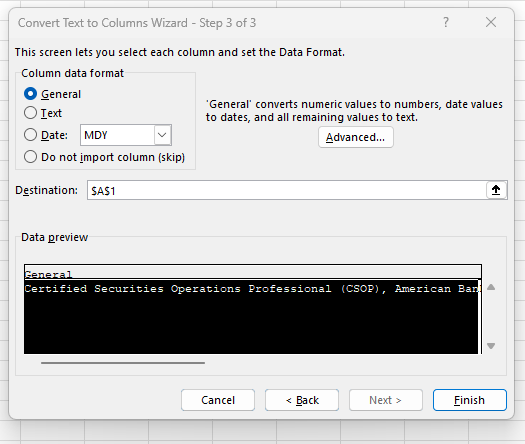
Step 3: Leave as is, Click Finish
-
-
-
Now all certificates are parsed into their own cells
-
Further manipulation can be done as desired using the same “text to column” functionality but changing the delimiter.
-
It is only recommended to do this if all certifications exist as their own row in Excel (ref. Reporting item 4a.)
-
Related to