Getting Started
You will start by logging into your organization's LCvista site using your username and password.
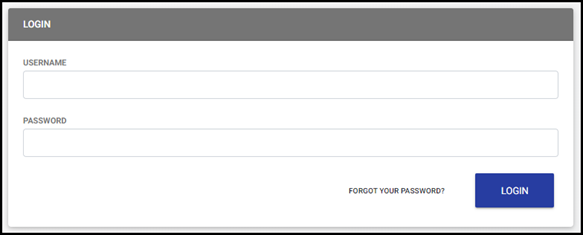
If you do not have a password assigned to you or you have forgotten your password, you can select the "Forgot your password?” link, at which time an email will be sent to you with instructions on how to set up a new password. Due to security reasons, LCvista does not store user passwords on file.
Note: These instructions do not apply if your organization logs in via an internal portal or intranet.
My Dashboard Hub
Once you log into your account, your personal dashboard will show you an overall look at your compliance information, events occurring today, and additional widgets related to sessions you are enrolled in or assigned.
Note: The widgets available to you on the Dashboard are customized by organization, and may not apply to you. Further, the links in the Sidebar Menu will also differ depending on the products utilized by your organization.
Dashboard widgets include:
- Events scheduled
- Announcements
- Jurisdiction Deadlines
- Upcoming training sessions
- Available programs to complete
- Upcoming assigned programs
- Upcoming Learning Plan deadlines
My Learning Hub
Select the My Learning hub to access your Transcript, as well as a list of all Programs, Learning Plans, and Activities assigned to you, if these tabs have been enabled.
Note: This hub is only enabled for organizations utilizing the Learning Management System.
Transcript
The Transcript tab lists all programs for which you have a status (enrolled, passed, incomplete, etc.), unless filtered using options above the program listing.
Use the row action menu to:
- View Details by navigating to the Program Preview
- View and download the certificate for the complete program
- Request a credit modification (if enabled)
You can also print, export, or download certificates from this page using the Actions drop-down button.
My Compliance Hub
When you select the My Compliance hub, you will see your Compliance Summary with tabs for all jurisdictions you are assigned to. View your overall requirements, along with individual reporting requirements for your jurisdictions, by selecting each tab. View a curated list of programs that qualify for the relevant jurisdiction and requirement by selecting the Qualified Programs link.
Manage Jurisdictions
The option to manage your jurisdiction details now appears as My Jurisdictions within My Compliance.
Use the Reporting Period dropdown and select the desired period.
Compliance Detail
Select the View Details link to navigate to the Compliance Detail page, where you will see all credits that qualified toward this requirement. Choose from individual years or the overall requirements sections. This view will change for each jurisdiction based on individual requirements (i.e., annual, biennial, triennial). The Compliance Detail page lists programs that were completed and applied to the selected jurisdiction.
Credits by Requirement
View a detailed table of your jurisdiction’s requirements and period dates, along with the credits required, applied, completed, and your status in that requirement.
Program Listing
View a detailed table of programs that were completed and applied to that specific jurisdiction. Search for a particular program or filter using the dropdown menus above the program listing.
Credits by Field of Study
The total table at the bottom of the Compliance Detail view details
- Credits Completed (earned, limited accrued carryover without carryover applied)
- Carryover applied
- Summary of Total Credits earned in the period (considering any limited credits along with accrued carryover and carryover applied).
Note: The totals on the Totals table will adjust when a Period filter is selected.
Compliance Detail Export
To export your Compliance Detail, select the row action menu and choose to export to CSV or Excel. Requirement totals will appear at the top of your export, and Totals will appear appending the bottom of the completed programs list.
Calendar Hub
Use the calendar to find upcoming sessions.
Here you can filter by:
- Catalog
- Delivery Method
- Field of Study
- Sponsor
Modify the Current time zone to update the session times accordingly.
Select the Month, Week, or Day tabs to narrow your view.
When you select a day that lists a session you would like to enroll in, the programs will display below the calendar, where you are able to preview the session information and enroll.
Select the row action icon (3 vertical dots) to preview/enroll in the session. When you select the Preview/Enroll link, you will be directed to the Program Preview, where you can see any information listed for the program and will have the ability to enroll in a session.
NOTE: The calendar highlights upcoming sessions that are available through catalogs you have access to. To locate a specific session record that may not be available in a catalog, please refer to your Transcript.
Program Preview
The Program Preview page contains all of the necessary information and details related to a selected program and its associated sessions. The page is broken into the following areas:
- General Info
- Additional Program Details Tab
- Session- Enroll/Launch Tab
- Jurisdiction Credits Pane
General Info
The General Info card displays the Program Name, ID, Sponsor, and Description, if provided. You can also find details regarding the program’s Field(s) of Study and Credit values, as well as the program’s Level, Length, and Revision Date, if provided.
Additional Program Details Tab
The Additional Program Details Tab displays the program’s Learning Objectives, Prerequisites, Advanced Preparation, and any associated custom Tags, if provided.
Session-Enroll/Launch Tab
Select the Sessions-Enroll/Launch Tab to view All Sessions available for the program and to enroll in a session. Sort by Start Date Ascending or Start Date Descending.
Jurisdiction Credits Pane
To view Jurisdiction Credits specific to each session, select the Jurisdiction Credits button. A pane will open on the right-hand side of the screen, and the menu on the left-hand side of the page will automatically collapse. Select a different session in the All Sessions list to update the Jurisdiction Credits pane.
When you select the Enroll button, you will automatically be enrolled and the session will be listed in the Your Enrollments list. The session status will be displayed with the session, and you will have the option to Unenroll.
If the session has launchable content, you will see the option to Launch.
Learning Catalog Hub
Select the Learning Catalog hub to view all programs included in your organization’s catalog(s). Use the filters or the search bar to locate specific programs within the catalog(s).
Note: This hub is only enabled for organizations utilizing the Learning Management System.
Depending on your site’s settings, you may have the option to choose between a Card View, a List View and/or a Table View to view program details.
Related to