Sessions are the core of the Conferences i/o experience, representing a training, meeting, or event.
Note: The ability to create/add sessions in a Conferences i/o app will require that you have our "multi-session" level of service. If your app doesn't have administration choices for Manage Sessions or Manage Presenters, this usually means that you have our more affordable "single-session" app, which only supports use for one meeting or session at a time. If you are interested in upgrading, please contact us.
Should this session be hidden?
Is this session an Agenda-only session?
Create a new session
- Sign in as an Admin
-
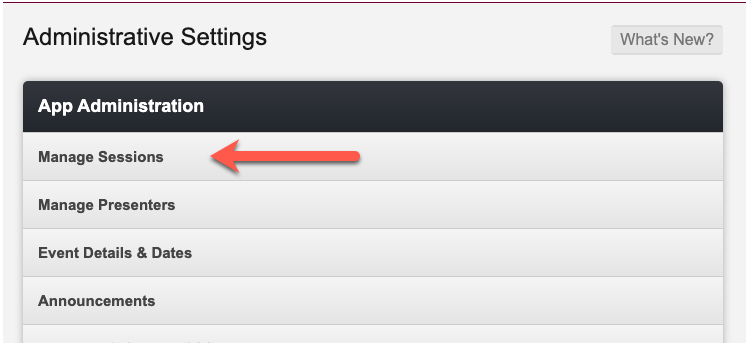
Click Manage Sessions
-
Click Create a New Session

-
Name the session and enter any other optional details
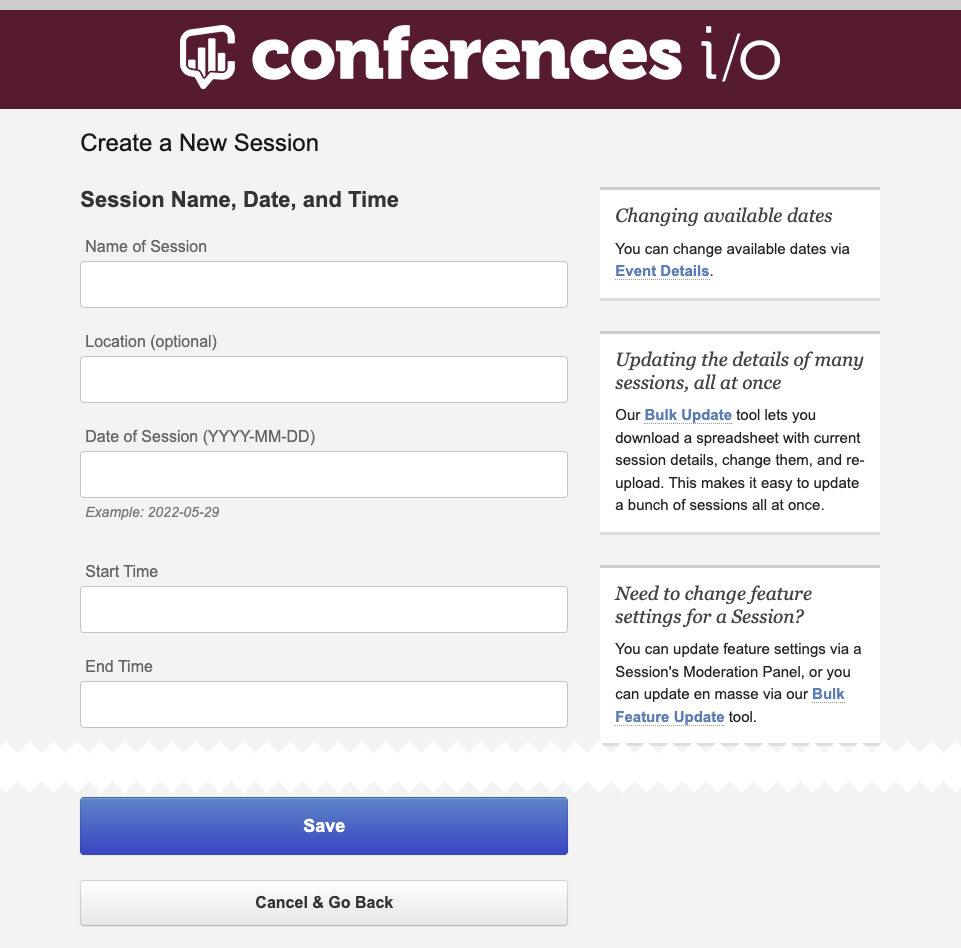
- Click Save
Edit an existing session
- Sign in as an Admin
- Click Manage Sessions
-
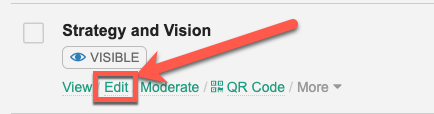
Locate the session to edit and click Edit below the session’s title
- Update the session details
- Click Save
Settings Details
Session Name, Date, and Time
-
Name of Session: The name of the session
- Appears on the Home page of the app and at the top of the session dashboard
- It is also the only required field when creating a session
-
Location: The physical location of the session
- Appears under the session name on the home page
- Useful when creating an in-person or on-site session to direct attendees to the correct area
-
Date of Session: The date of the session
- Can only be one date, not a span of multiple days
- Required for automatically unlocking Session Evaluations based on the date/time a session is scheduled to end
- If the session date is unavailable, double-check the event dates selected on the Event Details page
-
Start Time and End Time:
- Required for automatically unlocking Session evaluations based on the date/time a session is scheduled to end.
Learning Objectives
- Up to 10 objectives can be added per session
- Each objective can be evaluated separately in the Session Evaluation
Metadata
-
Session ID: a customizable field for reporting
- Useful for teams that use internal code names of each session
- The Session ID will be included in reporting and can only be seen by the Admin
-
Session Type: a customizable field for reporting
- Useful for identifying sessions by type or category in reporting
-
Session Topic: a customizable field for reporting
- Useful for identifying sessions by topic in reporting
Advanced
-
Session Moderator Password: session-specific password for moderators
- This password overrides the global moderator password
-
Attendee Password: session-specific password for attendees
- Attendees will be prompted to enter the password before they can join the session
-
Session Ordering Rank: a numerical order for custom sorting
- Useful when multiple sessions are scheduled to occur at the same time.
- Sorted ascending by rank, where 1 is at the top and the highest value is at the bottom
Should this session be hidden?
- Check the box to hide the session and prevent it from appearing on the Home page.
- Sessions can also be hidden and unhidden on the Manage Sessions page by clicking the Hidden/Visible toggle below the session’s name.
Is this session a Q&A panel?
- Useful for sessions with more than 1 presenter.
- Checking the box will add the option in Social Q&A for attendees to direct a question to a specific presenter in the session.
Is this session an Agenda-only session?
- Useful for Admins who would like to block off time for lunch or breaks in between sessions on the Home page.
- Agenda-only sessions aren’t clickable but are used as placeholders in the agenda.
Presenters
- Presenters added on the Manage Presenters page can be added to the session.
Video Demonstration
Related to