Inform attendees and add value to sessions and events by adding pages to your Conferences i/o web application.
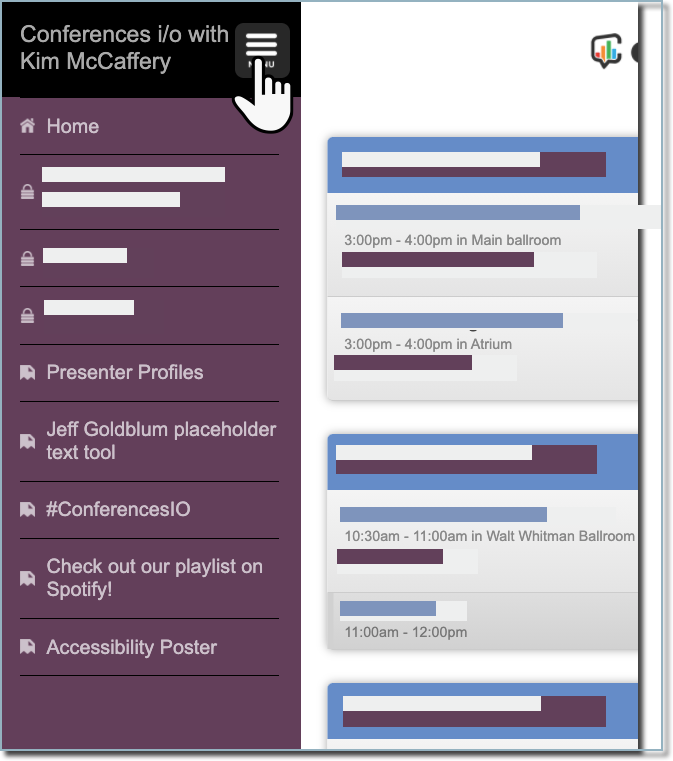
Create a page
- Sign in as an Admin
- Click Page Management
- Click Create a New Page
-
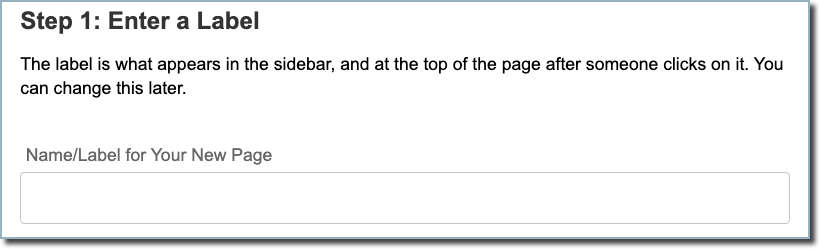
Enter the page label will appear in the sidebar menu
-
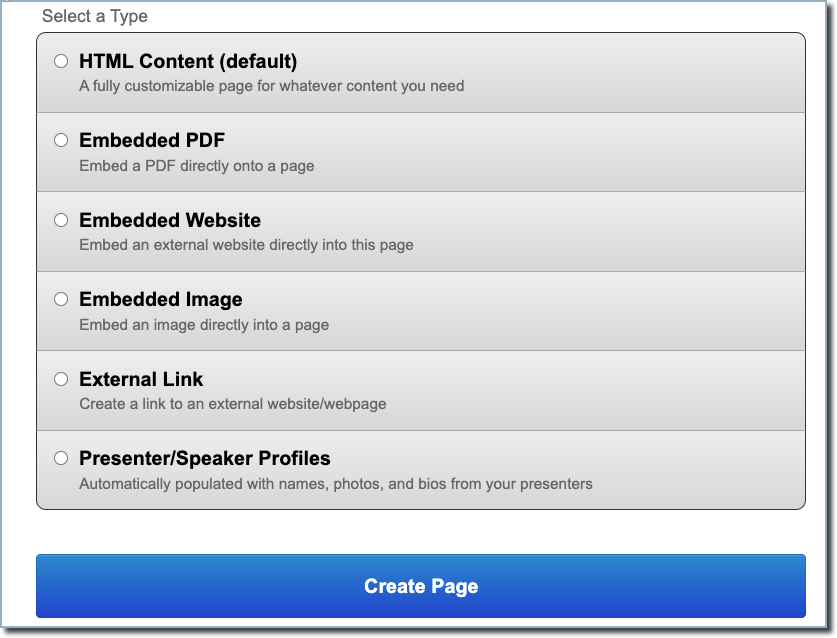
Select the type of page to create
- Click Create Page
Page Types
HTML
The most flexible page option. Create a doc, add hyperlinks, video, images, tables, graphs, and more.
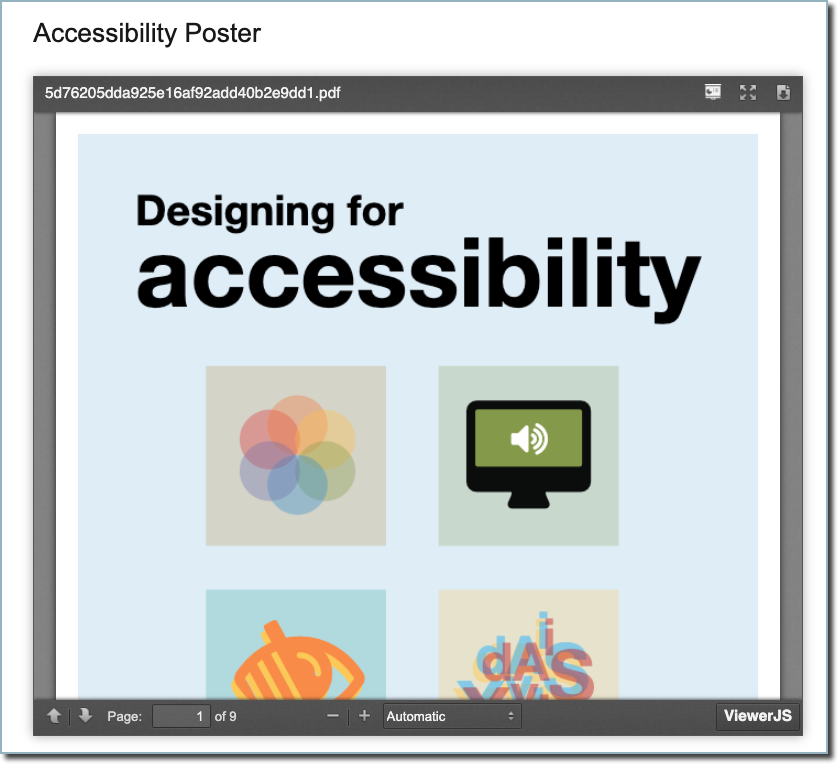
Embedded PDF
Embed content attendees can view in the page and download
Embedded website
Instead of redirecting attendees to a website outside of your Conferences i/o web-app, embed the website in a page
Note: Websites must be accessible via HTTPS (not HTTP) and allow embedding.
Embedded image
Upload images formatted as PNG, JPG, or GIF
External link
Add a direct link to any website
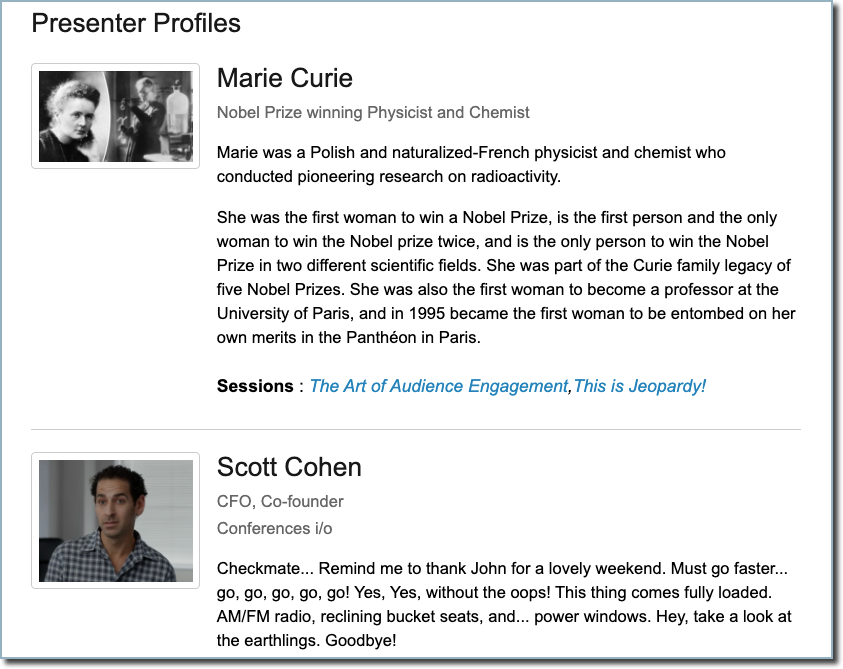
Presenter Profiles
Automatically populated with presenter details
Toggle Page Visibility
When editing a page, toggle Yes, hide this page from attendees to hide the page. Admins can see hidden pages, but attendees cannot.

Hide pages by checking Yes, hide this page from attendees. Add pages back to the sidebar menu by unchecking the box.