Add audience polling or the Team Battle quiz game to Google Slides presentations using the Conferences i/o Chrome extension.
Step-by-step
- Download the Conferences i/o Chrome Extension from the Google Play Store
- Sign into the session as a Moderator
-
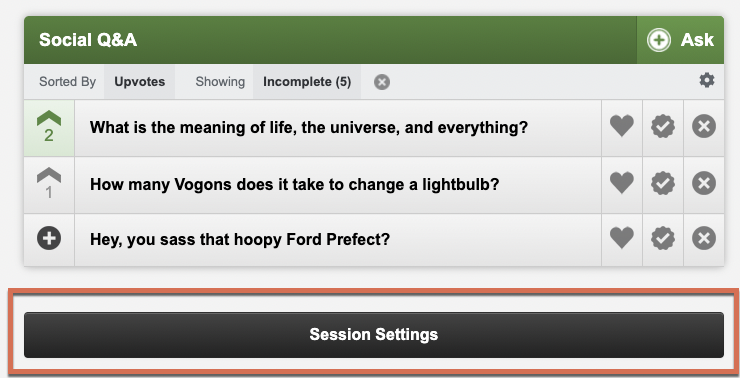
Click Session Settings
-
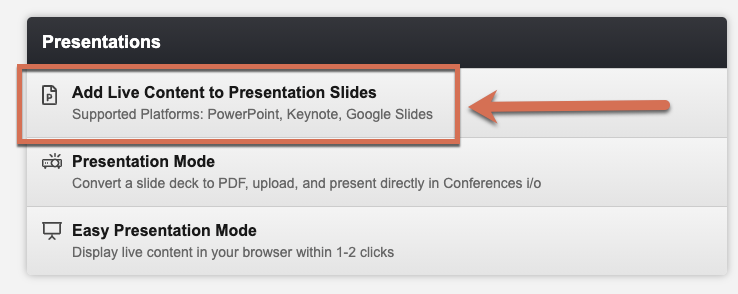
Click Add Live Content to Presentation Slides
-
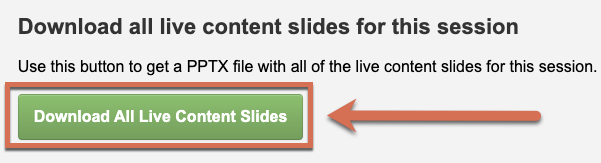
Click Download All Live Content Slides
-
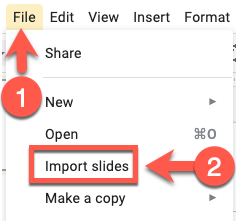
In the Google Slides presentation, click File > Import Slides
-
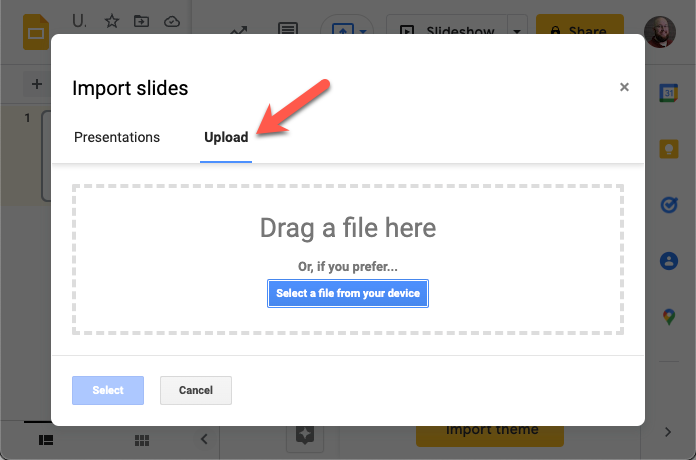
Click the Upload tab and select the file containing the live content slides
-
Select the slides to add to the presentation then click Import Slides
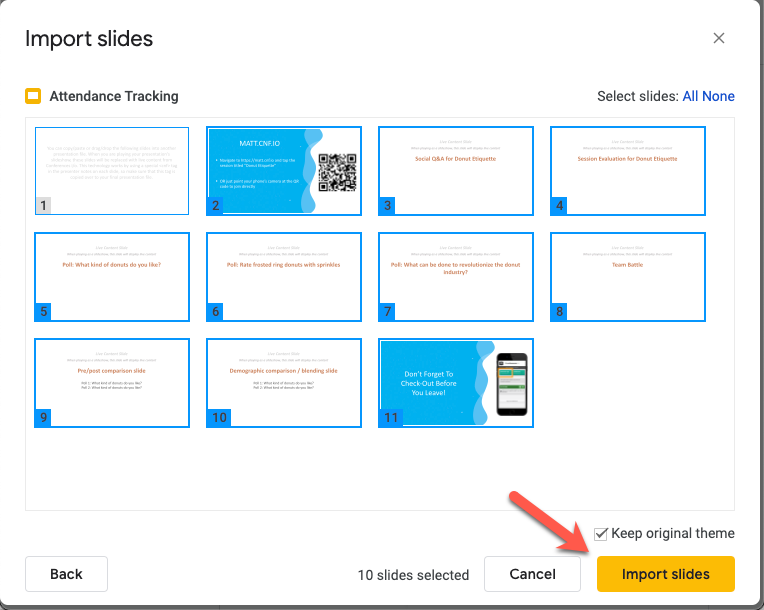
- Drag and drop the live content slides to organize the order of Google Slides presentation
-
To present, click the dropdown menu arrow next to Present and select Presenter View
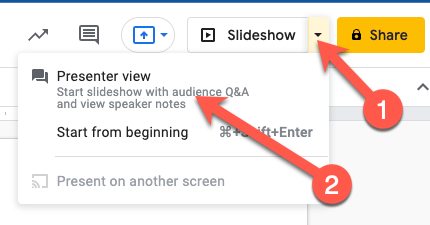
Troubleshooting Tip: Double-check that Presenter View has been selected from the dropdown menu. This is necessary in order for the Conferences i/o Chrome extension to work.