Overview
Archive sessions along with their engagement data, polls, evaluation insights, attendee info, and more.
Use the Archive Sessions tool to remove a session from the Manage Sessions page and the Home screen of the Conferences i/o web-application without losing any data or deleting it entirely.
Archived sessions aren’t deleted and can be restored again at any time.
Note: Archived sessions count toward the session limit. For questions about the session limit, please Contact Customer Support.
Archive individual sessions
- Sign in as an Admin and go to Manage Sessions
-
Click Archive beneath the session’s name

-
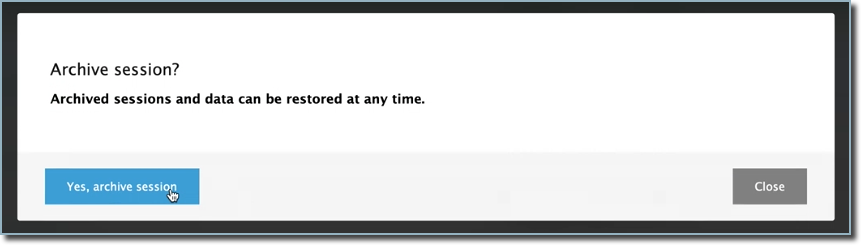
Confirm by clicking Yes, archive session(s)
Archive multiple sessions
- Sign in as an Admin and go to Manage Sessions
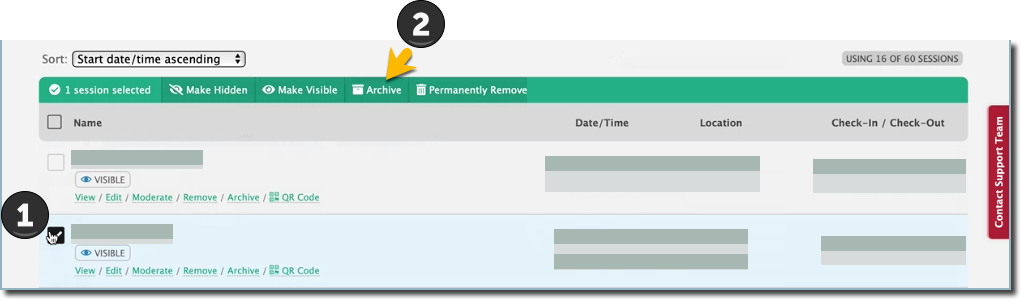
- Check the box for each session to archive
-
Select Archive from the menu bar that appears above the list of sessions
- Confirm by clicking Yes, archive session(s)
Attendees and Moderators won't be able to access a session once it's been archived.

After a session has been restored, attendees and Moderators can access the session and its contents again through the web-application or by clicking the session's unique URL link.
Restore sessions
- Sign in as an Admin and go to Manage Sessions
-
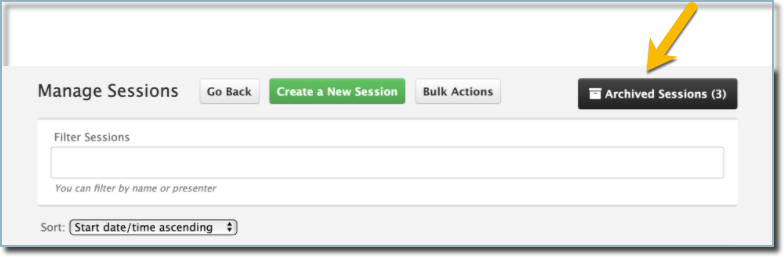
Click the Archived Sessions button to view all archived sessions
-
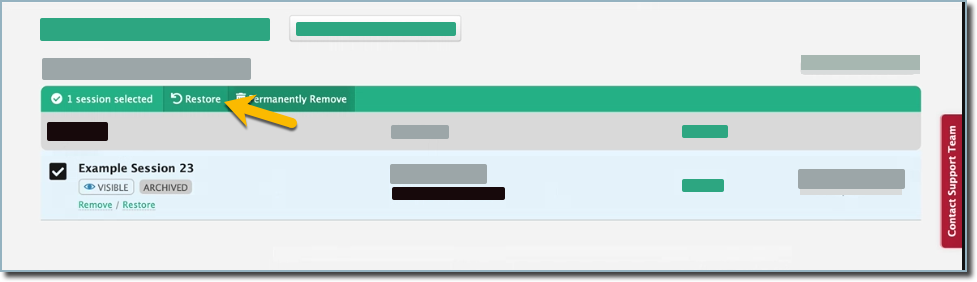
Restore an individual session by clicking Restore beneath the session's name OR restore multiple sessions by checking the box for each session and select Restore from the menu:
-
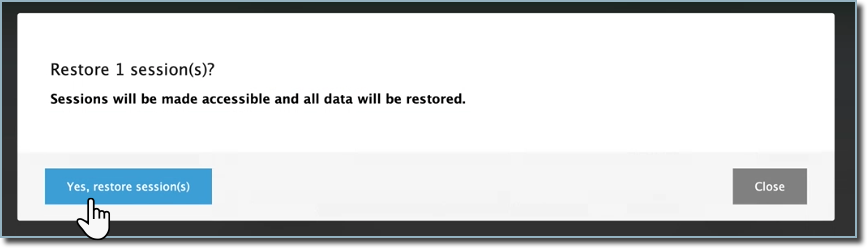
Confirm by clicking Yes, restore session(s):